


Banner
To start working with banners, go to "Modules -> All modules -> Banners".
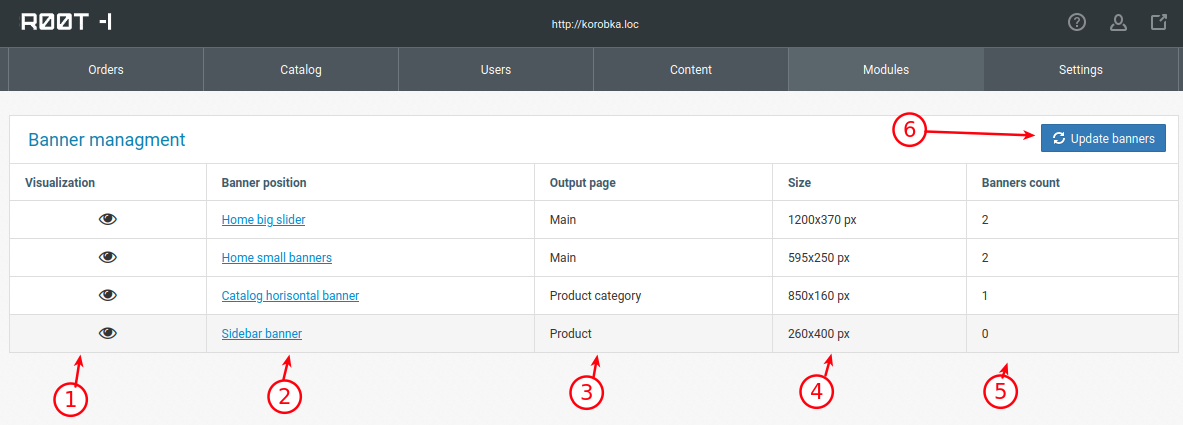
1. Schematic layout of the banner
2. Name and location
3. Page on which the banner will be displayed
4. Banner size
5. Number of banners
6. The button is responsible for updating the list of existing banners from the template. Used when changing a template to pull up the current list of supported banners specifically for this template.
Editing/Creating
Editing and filling with new slides is available after choosing which layout to edit.

1. Banner image with the required size and formats jpg|gif|png|jpeg|webp
2. General banner data. Link, activity, activity date.
3. Description. Not all templates support the ability to write text in banners. Function for developers.
4. Saving edited information. Do not confuse with the save button in the header (it is for the general list).
5. Remember that each banner has its own language version. If the site is multilingual, then you should fill in all the language versions that you need.
Slide display settings

The name is used only in the admin panel.
The effects and their actions are described in the admin panel under the "i" icon. There should be no problems with them.