


Translator
To edit translations of words in templates or modules, go to "Modules -> All modules -> Translator".
Initial functions
In order for the translator to see the words to be translated in a template or module, they must be wrapped in a special function in code.
For a template:
tlang('The word to be translated');
For a module that uses this construction:
lang('The word to be translated','Module name, example aggregator');
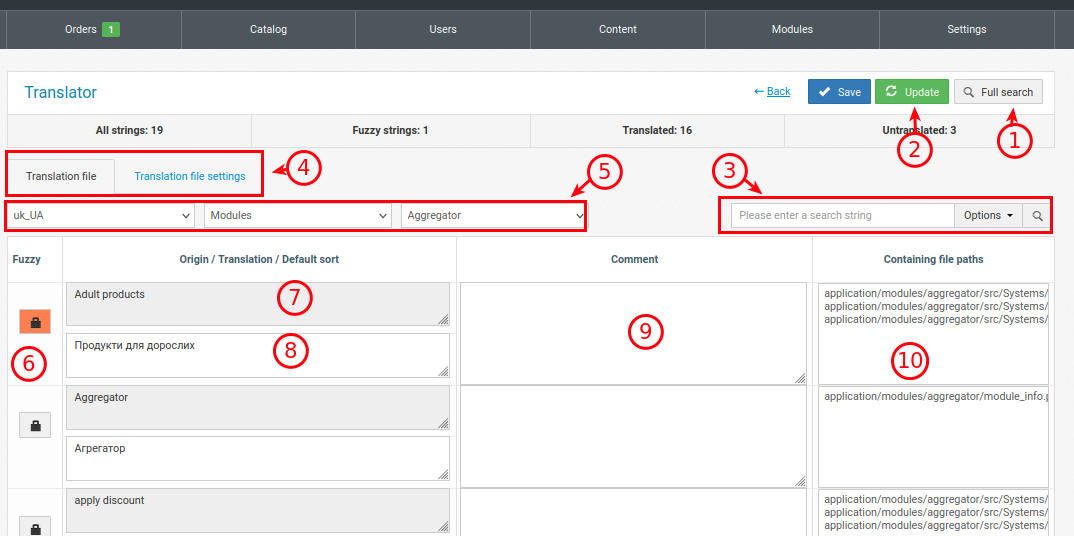
1. If you don't know where the word you're translating is used, you can search all files and languages. Be careful, if it's a popular word or particle, it can find it in many files. In this case, you should go through all the words and check which of the changes will respond to the one you need.
2. When adding a new word to a template or modules, the translator won't know about it. To be able to work with the new meaning, you need to update the words. The translator will show which new ones it has found and which old ones it will delete (if they are no longer relevant).
3. Search for the required value by the keyword or translation in this particular working file and this language (not in all files).
4. Switch to the translation file settings (for developers, the ability to specify the queried paths along which the word parser will work).
5. Selecting the language, translation type (template or module) and end point (which template or module we are working with).
6. The ability to make the translation inactive. The filled data remains in the admin panel, but is not processed.
7. The word to be translated (key).
8. Translation.
9. Comment. The field is visible only in the admin panel.
10. Files containing this key (word to be translated). For developers.
Translation file setup
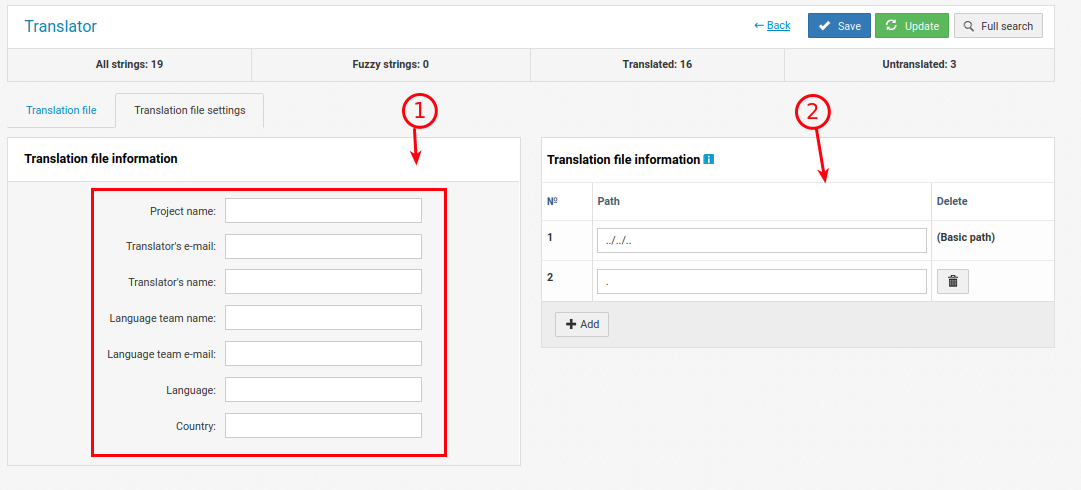
1. Optional information fields about translation, the team doing the translation, etc.
2. Fields with the location of the translation files (for developers).
Using paths:
Paths determine where to look for phrases for translation. The location of the folder that contains the files with these phrases.
Main - Defines the location (folder) relative to the .po file that contains the phrases to translate.
Additional paths - Defines additional locations to search for phrases to translate. Formed relative to and from the location where the main path points.
All paths must be relative.
Full word search
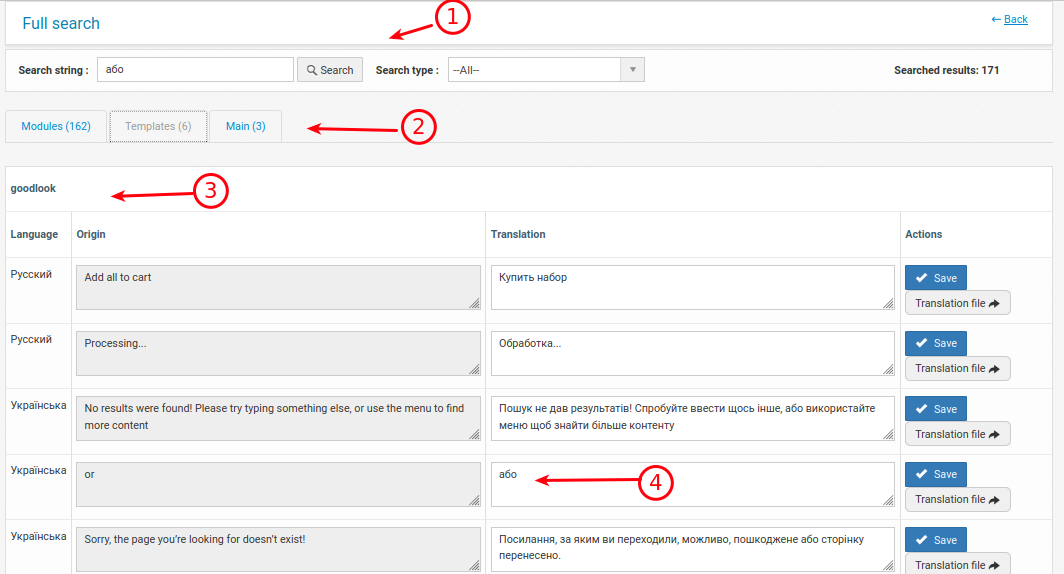
1. The searched translated word or translation. Searches for a word separately and within a sentence.
2. Places (types) with the found translated word or translation.
Modules - inside module translation files.
Template - inside template files.
Main - system translations in most cases in the admin panel.
3. The template or module in which the match was found.
4. Key word and translation. Which can be translated immediately if you have rights (0777) to save files in this directory.