Synchronization with 1C
To configure synchronization with 1C from the site, you should go to "Modules -> All modules -> Synchronization with 1C".
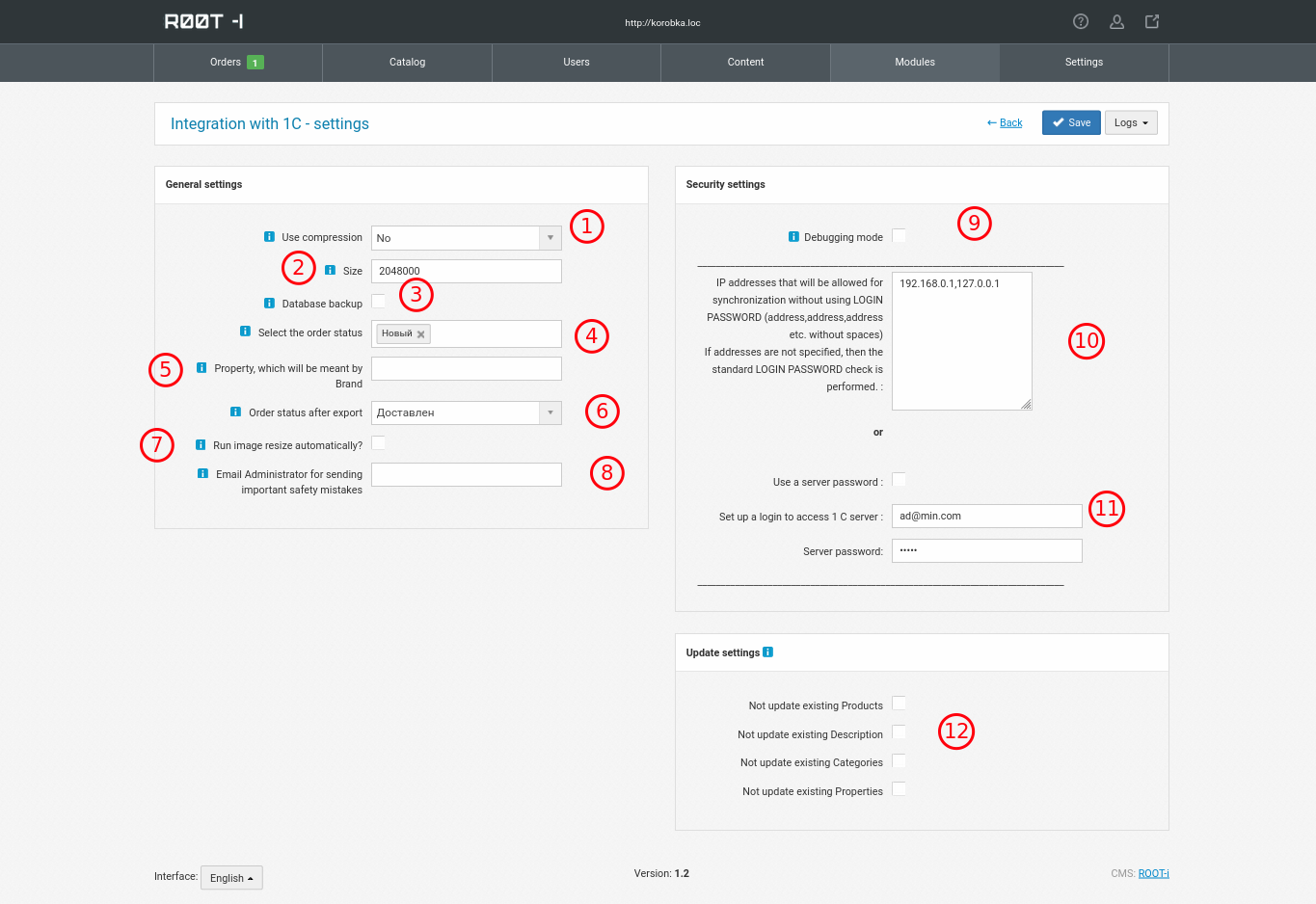
1. Will 1C send packages in zip format
2. The maximum size of the sent package at a time in bytes (2048000B = 2000KB = 1.95MB).
3. Do they make a backup of the database when downloading (It may noticeably slow down the download or not perform a backup if the database is larger than 50 MB. It depends on the server settings.) 4. Orders with this status fall into the order loading /exchange?type=sale&mode=query. After a successful download, 1C must confirm the download /exchange?type=sale&mode=success so that these orders change their status to the one specified in point 6. 5. If the brand comes with the download as a property, you can specify it <Ид> or <Наименование>. In this case, it will be created not as a property, but as a brand.
Example (property declaration block):
        <Свойства>
            <Свойство>
                <Ид>d7799c34-c632-11e3-9b18-bc5ff4757ec7</Ид>
                <Наименование>Виробник</Наименование>
                <ТипЗначений>Справочник</ТипЗначений>
                <ВариантыЗначений>
                    <Справочник>
                        <ИдЗначения>372a46bb-355b-11eb-913c-855545500584</ИдЗначения>
                        <Значение>OEM</Значение>
                    </Справочник>
                </ВариантыЗначений>
            </Свойство>
        </Свойства>
6. The status to which the order changes after unloading and successful confirmation (item 5). Don't specify the same for shipment and confirmed, the same orders will always be shipped. 7. After unloading, cut photos. This function should not be enabled if there are many goods in the shipment. Resize takes a lot of time and 1C may not wait for a response from the site after the waiting time limit has expired. 8. In case of errors, a notification about an access or download error will be sent to this e-mail. 9. When the debugging mode is activated, the authorization mechanism is removed. 1C and the site communicate without a password and without IP filtering. 10. IP address that will be allowed for synchronization without using LOGIN PASSWORD. 11. Use of Login and Password in the absence of specified IP addresses. 12. Do not update information in already created products. Information from unloading is taken only when creating new products. Made for the possibility to manually change the parameters of the product in the admin, but to accept the current prices and balances.
Product unloading
An example of a file for unloading goods from 1C with a description of vnutri.
Example of a file for uploading prices and balances from 1C with a description inside.
Downloading the catalog begins with the fact that the "1C: Enterprise" system sends an http request of the following type:
http://<site>/exchange?type=catalog&mode=checkauth.
In response, the site management system transmits to the "1C:Enterprise" system. three lines (the "\n" line separator is used): the word "success";
cookie name;
Cookie value.
Note. All subsequent requests to the site management system from "1C:Enterprises" contain the name and value of the cookie in the request header. exchange?type=catalog&mode=init
In response, the site management system sends two lines:
1. zip=yes if the server supports exchange in zip format - in this case, at the next step, the files must be packed in zip format
or
zip=no - in this case, the files are not packed at the next step and are transferred individually.
2. file_limit=<number>, where <number> - the maximum permissible file size in bytes for transfer in one request. If the "1C: Enterprise" system needs to transfer a larger file, it should be divided into fragments.
Then "1C:Enterprise" requests with parameters of the type http://<site>/exchange?type=catalog&mode=file&filename=<name file>
downloads exchange files in CommerceML 2 format to the site, sending the content of the file or its part in the form of POST.
In the case of successful recording of the file, the site management system issues the string "success ".
In the last step, on request from "1C: Enterprises", a step-by-step download of the catalog is performed on request with parameters of the type http://<site>/exchange?type=catalog&mode= import&filename=<the name of the file that was downloaded>
When loading, the site management system can respond in one of the following options.
1. If the first line contains the word "progress" - this means the need to send the same request again. In this case, the current processing status will be returned in the second line, volume downloaded data, import status, etc.
2. If a line with the word "success" is sent in response, it will mean a message about the successful completion of file processing.
Note. If an error occurred during any request, then the first line of the response of the site management system will contain the word "failure", and the following lines will contain a description of the error that occurred during the processing of the request. or sql-query, then the html-code will be returned.
Exchanging information about orders
Example of an order file from the site in 1C with a description inside.
An example of an order file from 1C to the site with a description inside.
1. The order is made on the site
2. When transferring the order to the "1C:Enterprise" system, the category "Order from the site" is set. The counterparty search is carried out by TIN or name, depending on the specified settings.
3. When loading an order, a contract with a counterparty is searched. The contract is searched among the existing contracts with the client, with the indication of mutual settlements for orders (as specified in the Organization's download settings). If no contract is found, a new one is created.
4. When loading an order, all its properties transferred from the site are loaded. Properties are searched for in the "1C:Enterprise" system by name. If there is no property with this name, then a new property with string or number type values is created.
5. The order can be modified in the "1C: Enterprise" system, while its changes will be uploaded to the site
6. If the order is paid or shipped in the "1C:Enterprise" system, then the status of the order after payment and shipment is uploaded to the site only when the operation is completed (full payment and full shipment). Until this moment, the order is considered unpaid and not shipped.
7. If you request to change an order in the "1C:Enterprise" system for which payment or shipping was made, the order will not be uploaded to the site as changed. At the same time, the user will receive a message about this.
8. After each order is uploaded to the site, the values of its categories are determined on the site (link to categories). These values are set in the system "1C:Enterprise" as they are assigned to the order on the site
Downloading the catalog begins with the fact that the "1C:Enterprise" system sends an http request of the following type:
http://<site>/exchange?type=sale&mode=checkauth.
In response, the site management system sends the "1C:Enterprise" three lines (the "\n" line separator is used): the word "success";
cookie name;
Cookie value.
Note. All subsequent requests to the site management system from "1C: Enterprise" contain the name and value of the cookie in the request header.
In response, the site management system sends two lines:
1. zip=yes if the server supports exchange in zip format - in this case, at the next step, the files must be packed in zip-format
or
zip=no - in this case, at the next step, the files are not packed and transferred individually.
2. file_limit=<number>, where <number> - the maximum permissible file size in bytes for transfer in one request. If the "1C:Enterprise" system needs to transfer a larger file, it should be divided into fragments. ?type=sale&mode=query
The site transmits information about orders in the CommerceML 2 format. In the case of successful receipt and recording of orders, "1C: Enterprise" transmits a request to the site (here it will be useful filling out the statuses from points 4 and 6 are described above in the admin)
http://<site>/exchange?type=sale&mode=success
Then the "1C:Enterprise" system sends to the site a request of the type
http://<site>/exchange?type=sale&mode=file&filename=<filename>, which uploads the exchange file to the server, sending the contents of the file in the form of POST.
In the case of successful recording of the file, the site management system transmits a line with the word "success". In addition, the following lines may contain notes on loading.
Note. If an error occurred during any request, then the first line of the response of the site management system will contain the word "failure", and the following lines will contain a description of the error that occurred during the processing of the request. or sql-query, then the html-code will be returned.
Configuration 1C 7.х
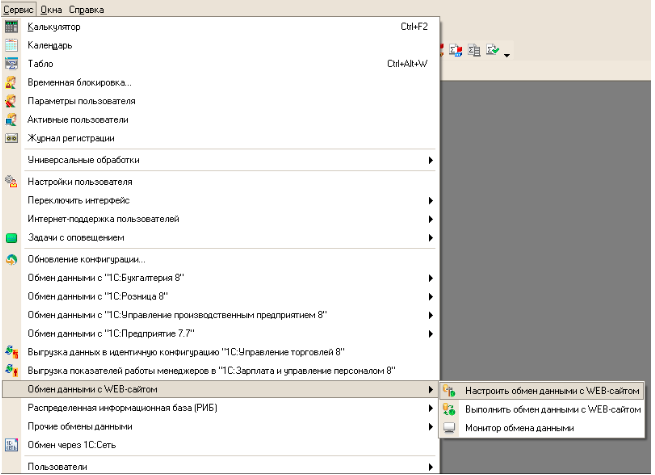
1. Start 1C, on the Server tab select the “Data exchange with WEB-site” далее “Set up data exchange with WEB-site”.
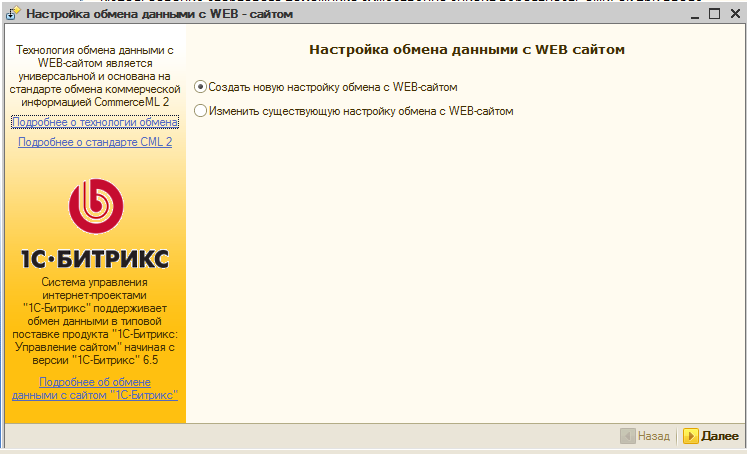
2. In the window that appears, create a new setting for exchanging with the WEB site.
3. After that, we proceed directly to setting up the connection to the site. Select the type of data that will be exchanged with the site (goods and orders) and the type of data exchange (in order for the data to be uploaded to the site, select "Upload to the site", if you select "Upload to the catalog", the data will be uploaded to specified directory). To upload data to the site, you must set the path to initialize the connection to the site, the user name must be set as the name of your account in 1C (set by default).
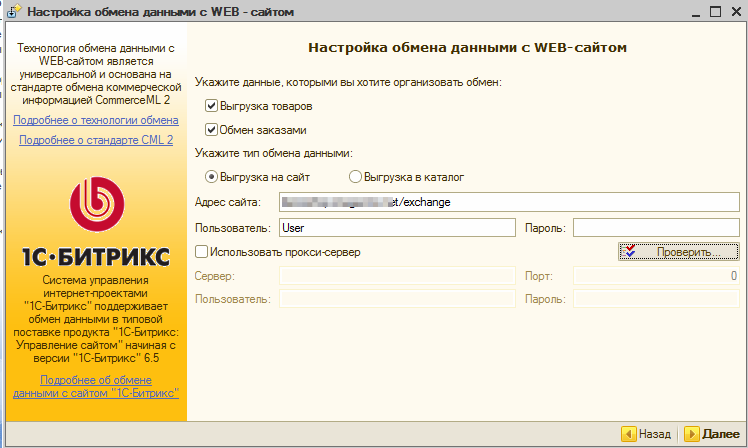
After setting the configurations for establishing a connection with the site, check the connection:
Click on the “Next” button.
Configuration of goods upload
Now you need to select the selection for uploading goods to the site and the catalog section in the Value column. Click on the "Next" button. At this stage, you need to specify the types of prices and product groups that will be uploaded to the site. If you check the "Upload images" checkbox, the attached product images will be uploaded together with the nomenclature. In addition, you can set additional selections. For example, you can select the field "Balance is greater than 0" and only those products that are in stock will be uploaded to the site.
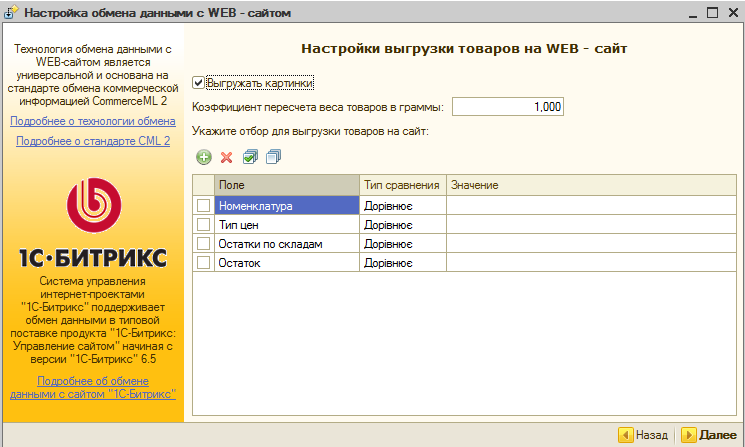
With the help of selection, restrictions on the unloading of goods are established.
Settings for exchanging customer orders
At this step, you need to specify the settings for exchanging orders (the setting is displayed if the “Exchange orders” checkbox is checked at the first stage). When loading customer orders from the site, new items of the nomenclature are identified by name, and counterparties in accordance with the established search method, which is indicated in the field "Method of identification of counterparties". For example, you can search for counterparties by name or by TIN + CPP. At the same time, if the counterparty is not found, it is created. If it is not necessary to create new counterparties when loading orders from the site, then as the value of the field "Method of loading counterparties" it is possible to specify "Do not create" and in the field that appears, select the counterparty that will be substituted in the loaded orders. In addition, in the fields "Group for new nomenclature" and “Group for new contractors” it is possible to specify the groups into which the not found nomenclature and counterparties will be loaded. Specify the nomenclature group “Product” (with this type of nomenclature new products will be recorded). Specify the unit of measurement for the new nomenclature. The created goods will be recorded with this unit of measurement. If necessary, fill in the new nomenclature group. This group includes goods and services created when loading orders from the site. Specify the agreement with which "Customer order" documents will be created. If it is required, specify the organization and manager on whose behalf these documents will be created.
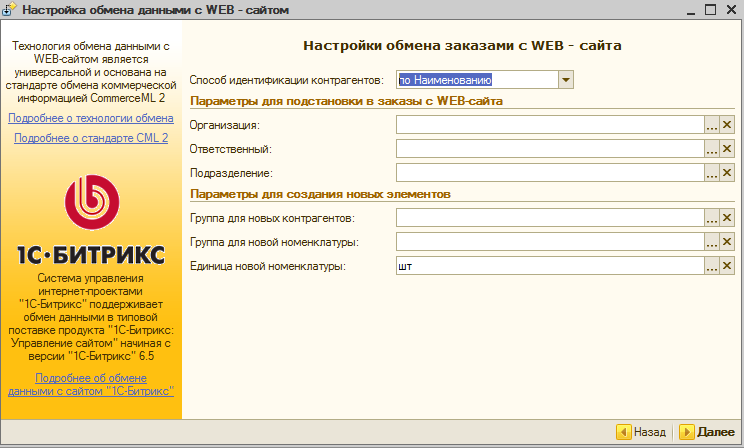
Next, you need to set the parameters of the actions with the documents received from the site:
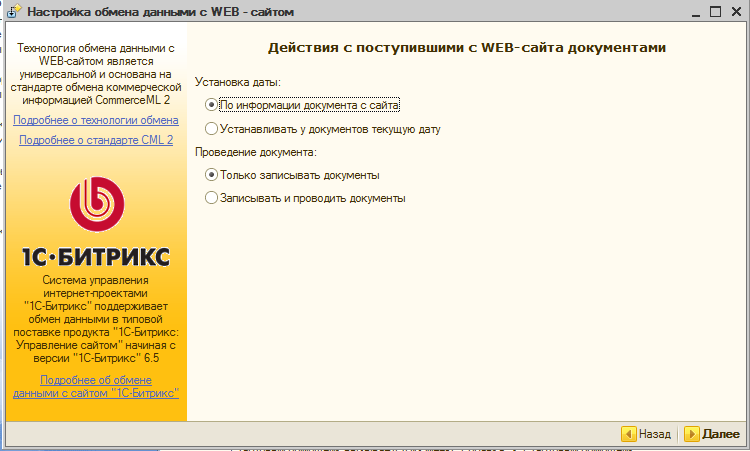
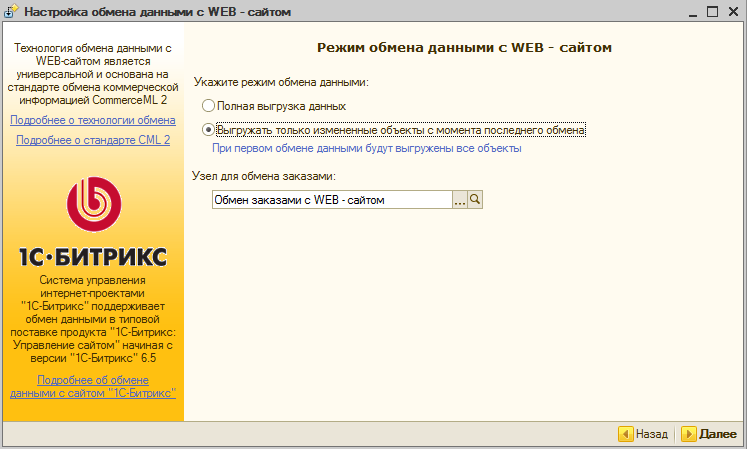
Mode of data exchange with the site:
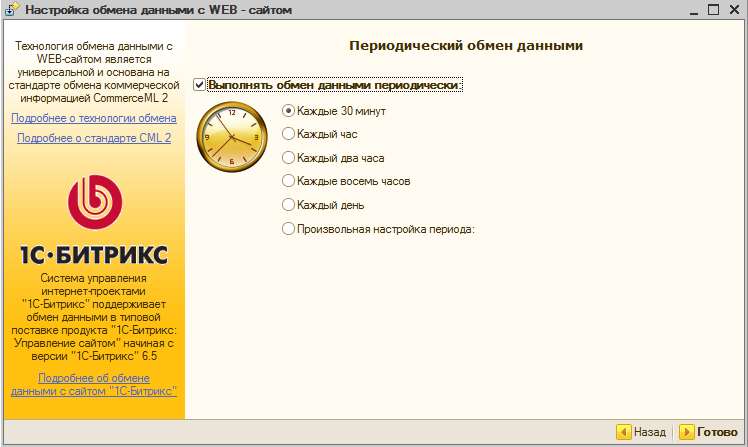
Now you can choose an interval for periodic data exchange with the catalog on the site. To finish, click “Done”. You will be prompted to perform the first exchange of data with the catalog.
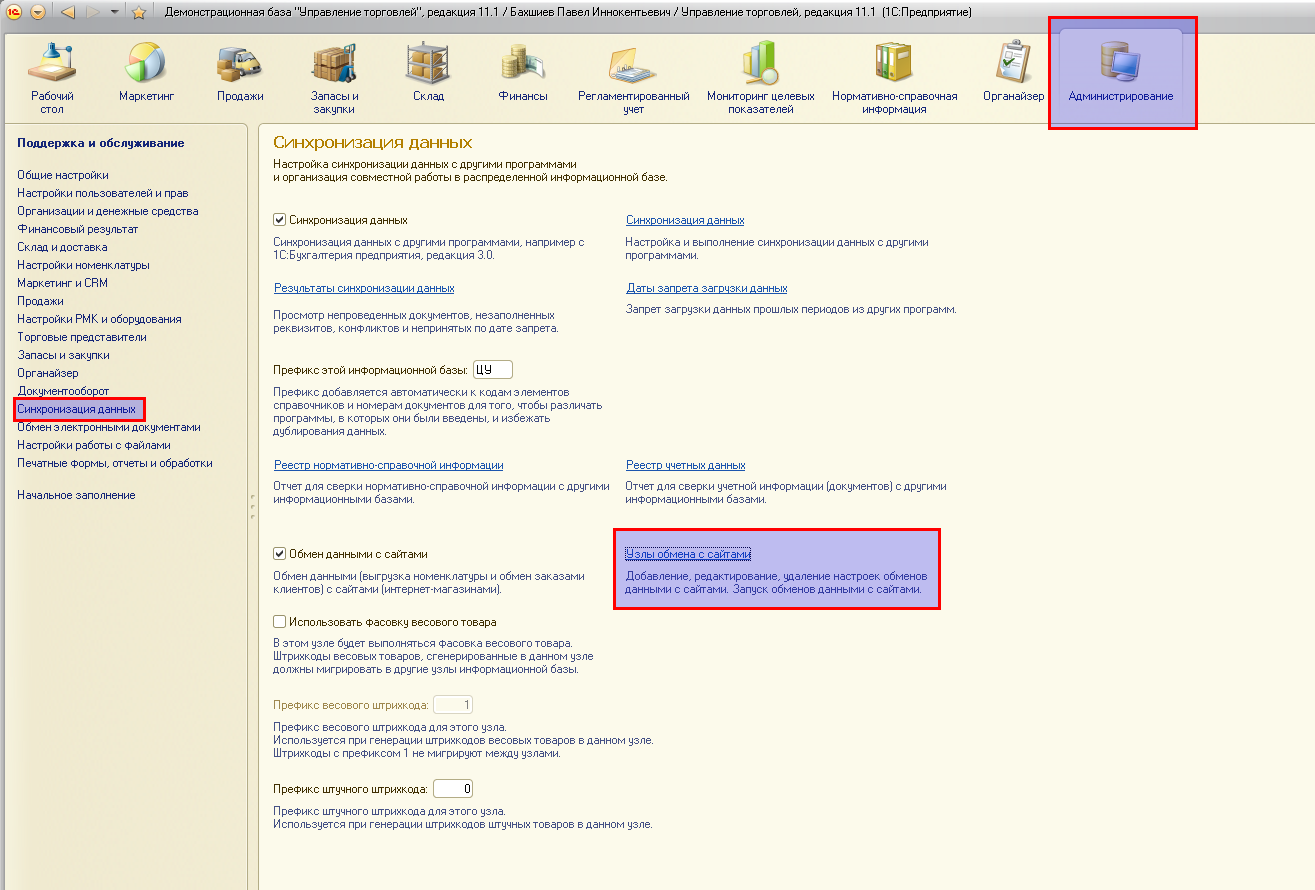
Configuration 1C 8.х
Start 1C, on the Administration tab, select the “Synchronization of data” далее “Nodes of exchange with sites”.
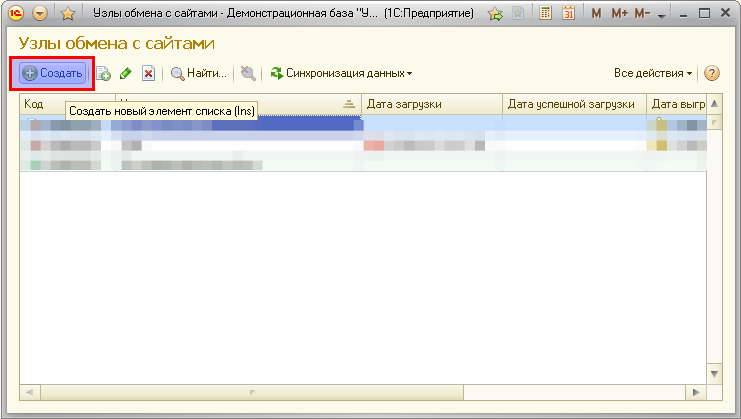
In the window that appears, select "Create a new list item (Inc)"
In the window that appears, set your connection settings and save them.
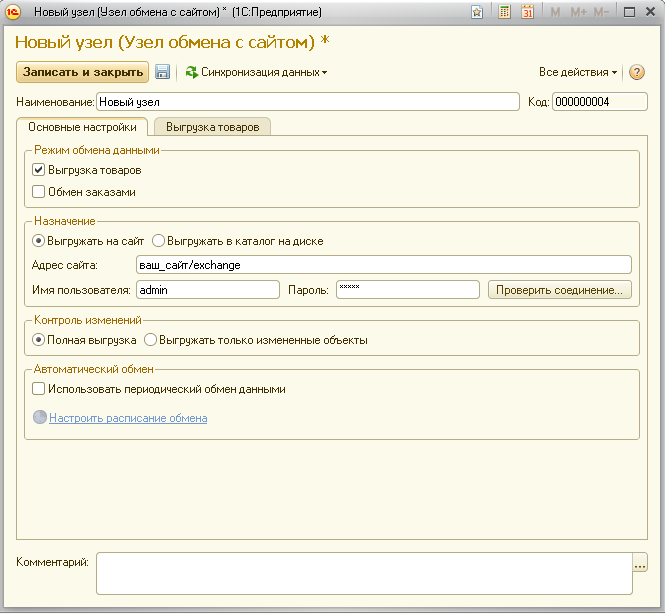
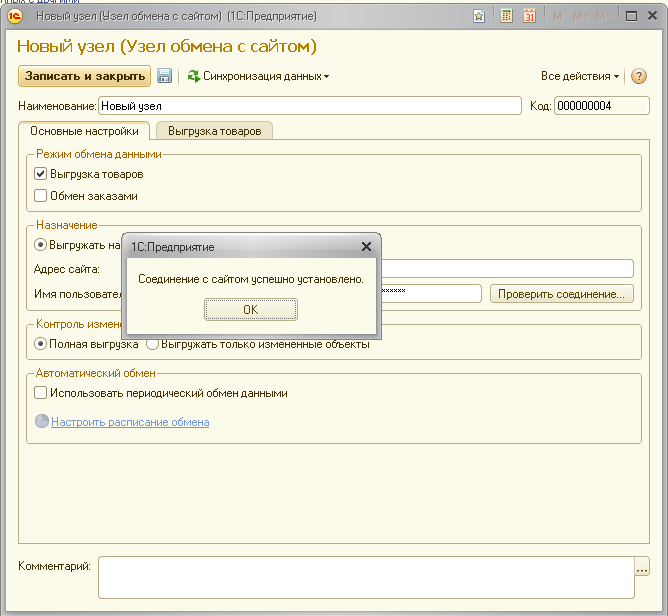
If you did everything correctly, you will see the message that the connection has been established by clicking on the "Check connection" button.