


Menu
To edit or create menu items, go to "Modules -> All modules -> Menu".
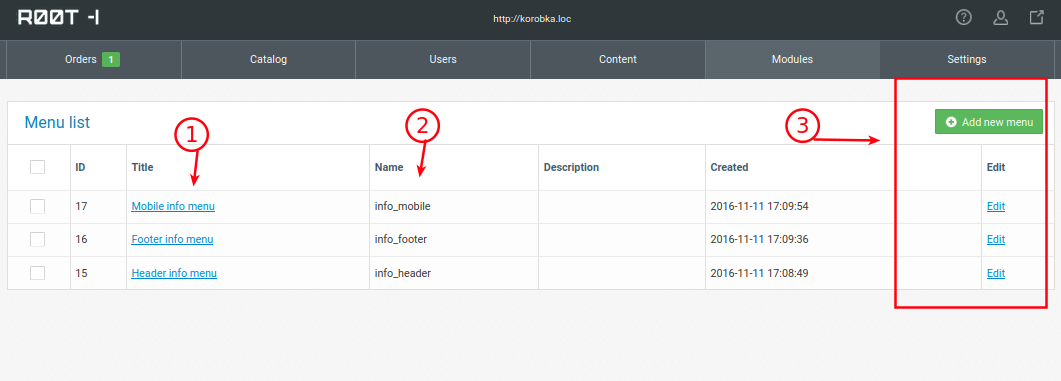
1. Go to editing one of the desired menus.
2. The menu name, by which you can determine the location of the menu display (site header, site footer, side mobile menu).
3. Create a new menu. For developers. Used to implement custom menu frameworks.
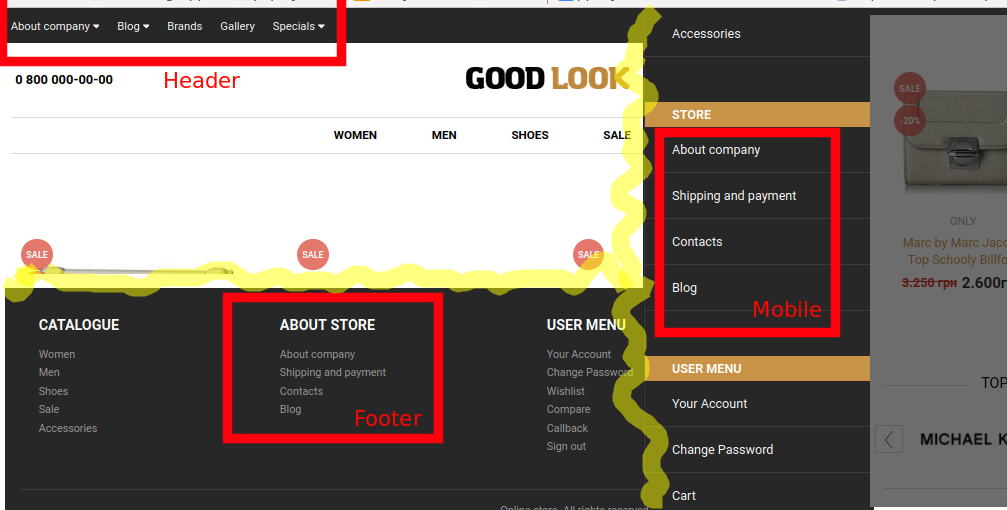
Editing the menu
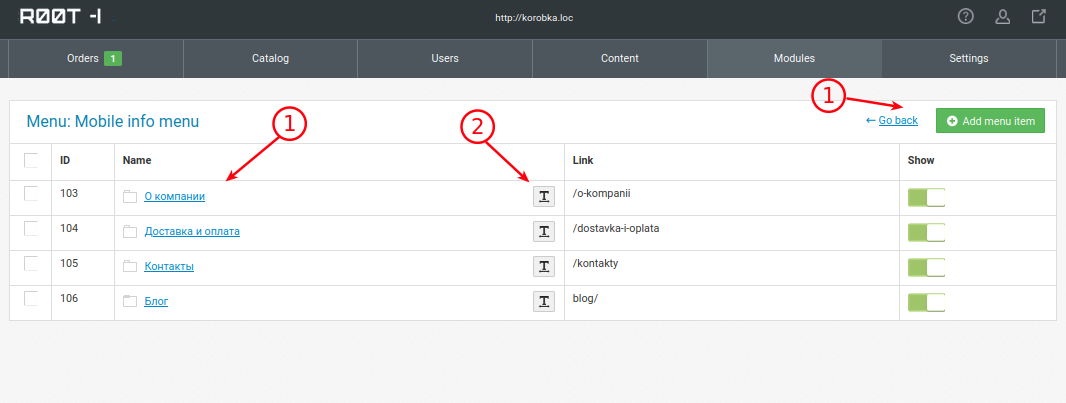
After going to the desired block for editing, you will see a list of items created in this menu.
1. Editing/Creating an item in the menu.
2. If the site is multilingual, then you should translate the items into the required languages.
Creating/Editing a Menu Item
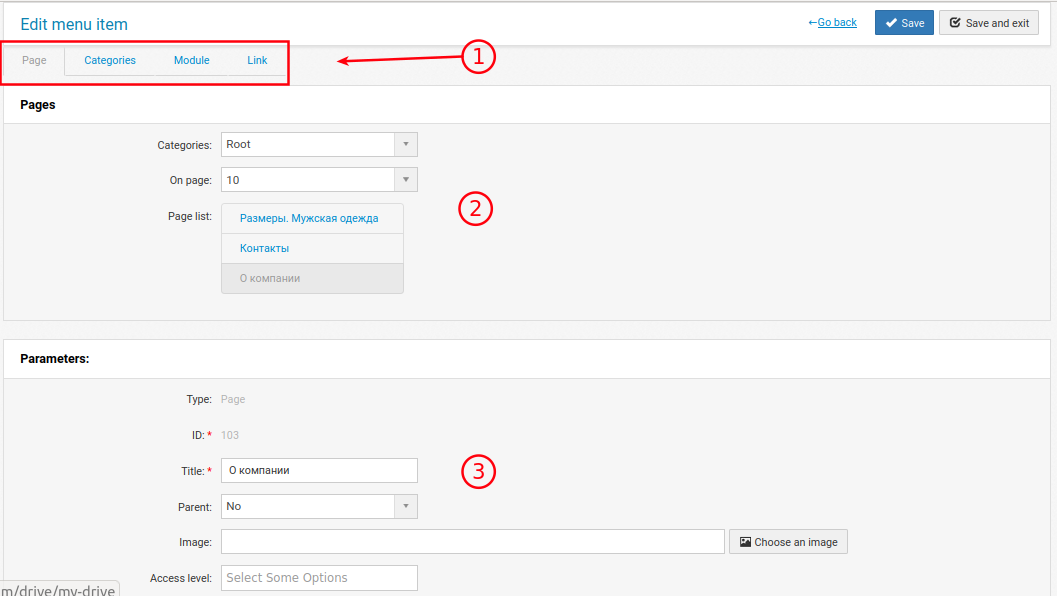
1. The item can be linked to an information page (article), article category, module (for developers) and to a link.
1.1. Page. You can select a ready-made existing page. All data will be pulled in automatically.
1.2. Category. The link can lead to a category of pages. Example: a blog page or a list of services.
1.3. Module. The function of placing elements from modules in the menu is included. There are none yet. Function for developers.
1.4. Link. The easiest way to place a menu item. Give it a link and a name without references to articles and categories. An internal link must start with the root (/contacts) without http://site_name (so that multilingualism and language switching work correctly).
2. Selecting an article, category, or entering a link.
3. Setting up which sub-item the item belongs to, the title in the main language (the rest are translated in the editing menu), the roles that will see this item and the image (not all templates have images linked to them, but there is such an item for developers).